Getting Started with cPanel: A Beginner’s Step-by-Step Guide
If you’ve just purchased hosting, one of the first tools you’ll interact with is cPanel. It’s a powerful yet user-friendly control panel that allows you to manage your website, emails, domains, and files all from one place.
In this guide, you’ll learn how to get started with cPanel on Zuumhost, even if you’re a complete beginner.
What is cPanel?
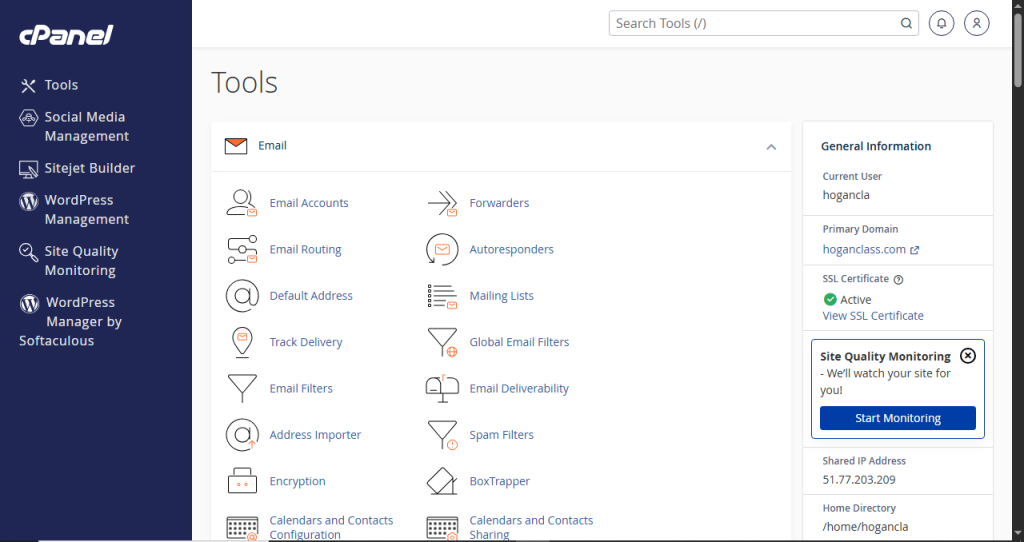
cPanel is a web-based control panel that simplifies website and server management. Instead of using complex commands, you can perform tasks using an easy-to-understand interface.
With cPanel, you can:
- Upload and manage website files
- Create business email accounts
- Manage domains and subdomains
- Install applications like WordPress
- Monitor website performance
It’s designed to make hosting simple for both beginners and professionals.
How to Access cPanel on Zuumhost
To get started:
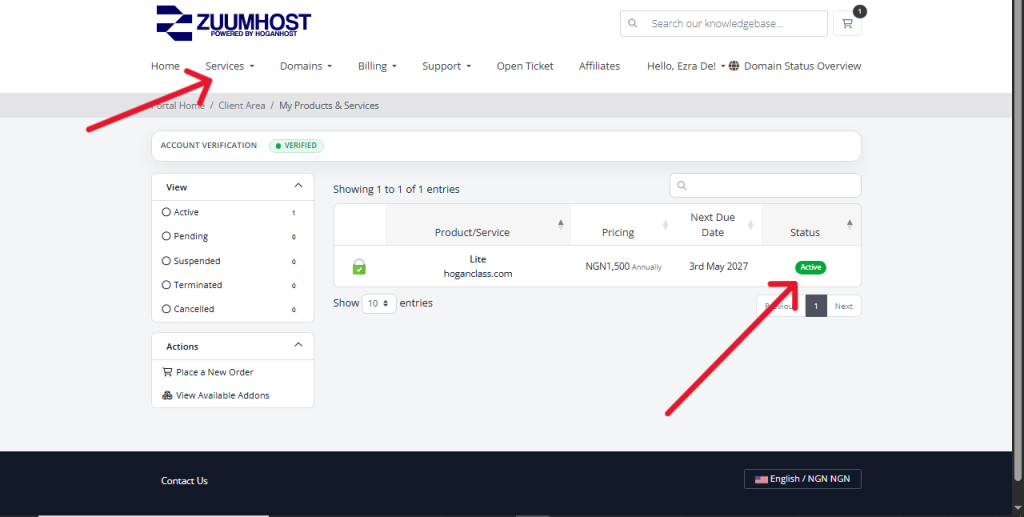
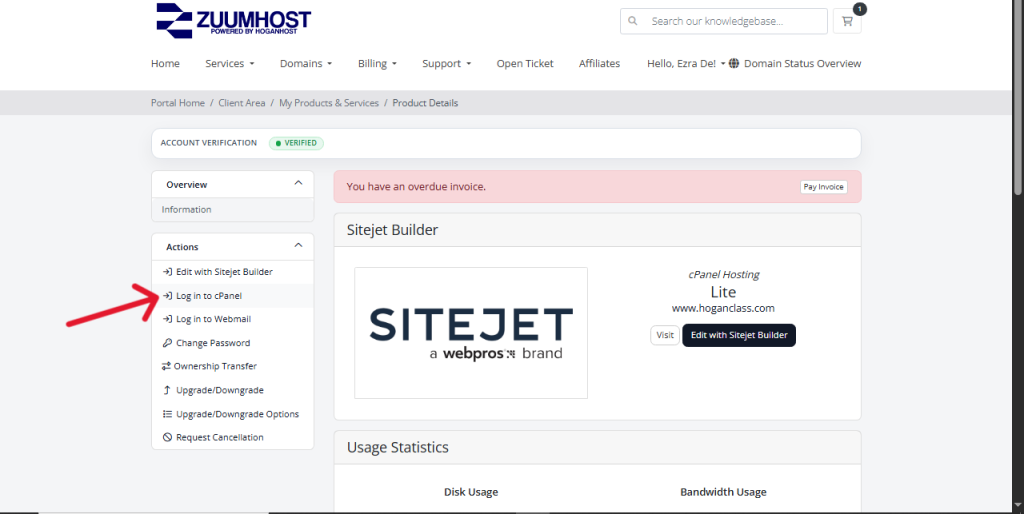
- Login to your Zuumhost client area
- Locate your hosting service
- Click on cPanel Login
Alternatively, you can access it via:
yourdomain.com/cpanel
Enter your login credentials to proceed.
Overview of the cPanel Dashboard
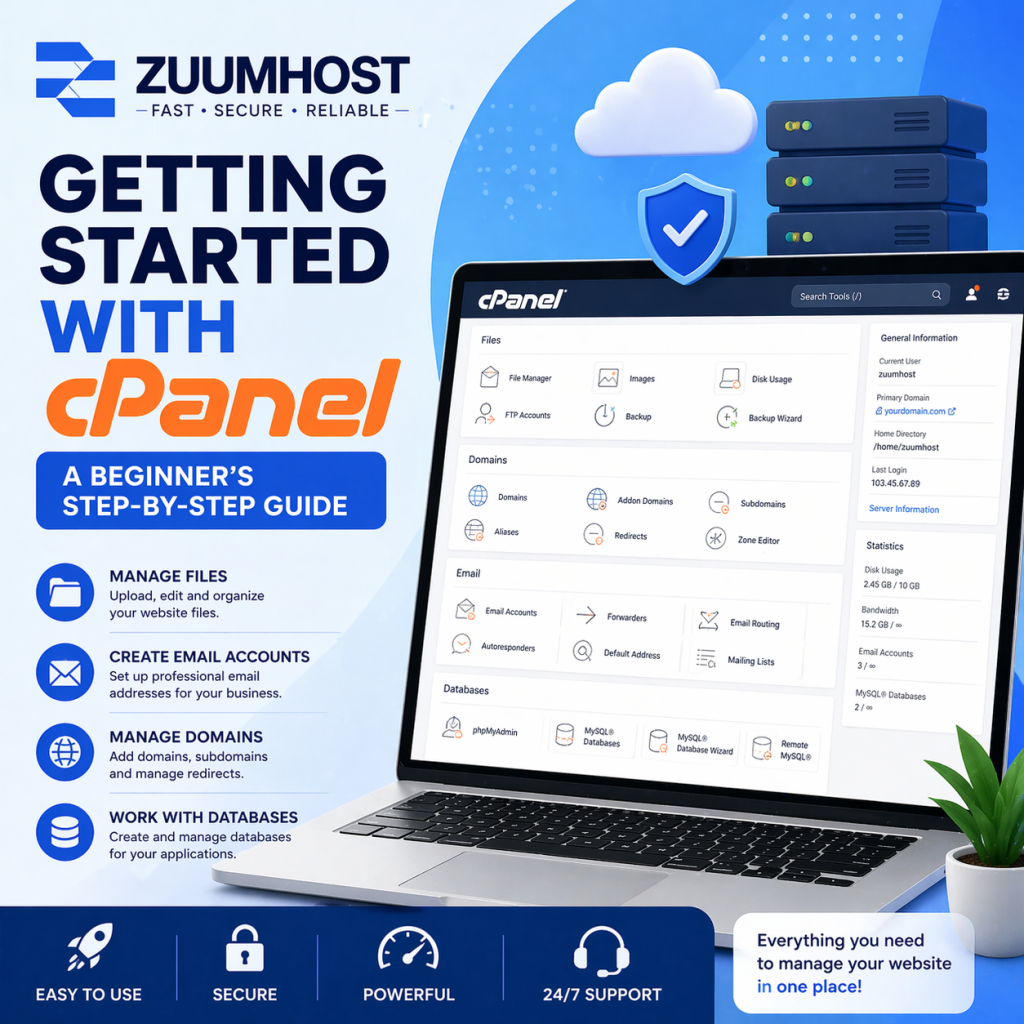
Once logged in, you’ll see different sections, each handling specific tasks:
1. Files Section
This is where you manage your website files.
- File Manager – Upload, edit, and delete files
- Backup – Create and restore backups
2. Domains Section
Manage everything related to your domains:
- Add new domains
- Create subdomains
- Manage redirects
3. Email Section
Create and manage professional emails:
- Email Accounts
- Forwarders
- Spam filters
4. Databases Section
Used for dynamic websites like WordPress:
- Create databases
- Manage them using phpMyAdmin
5. Software Section
Install applications easily:
- One-click WordPress installation
- Manage PHP versions
Step-by-Step: First Things to Do in cPanel
If you’re new, here’s what you should do first:
Step 1: Upload Your Website
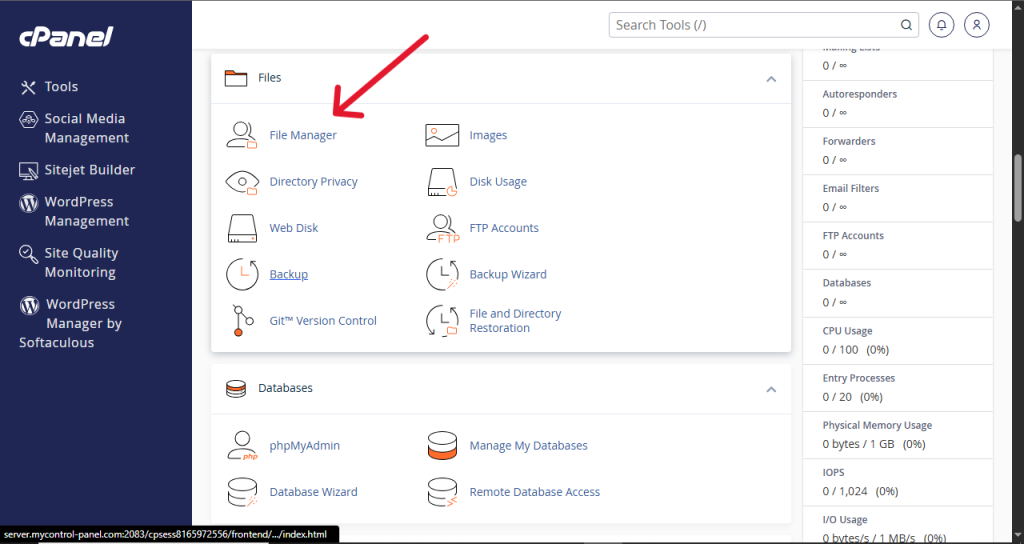
Go to File Manager
Open the public_html folder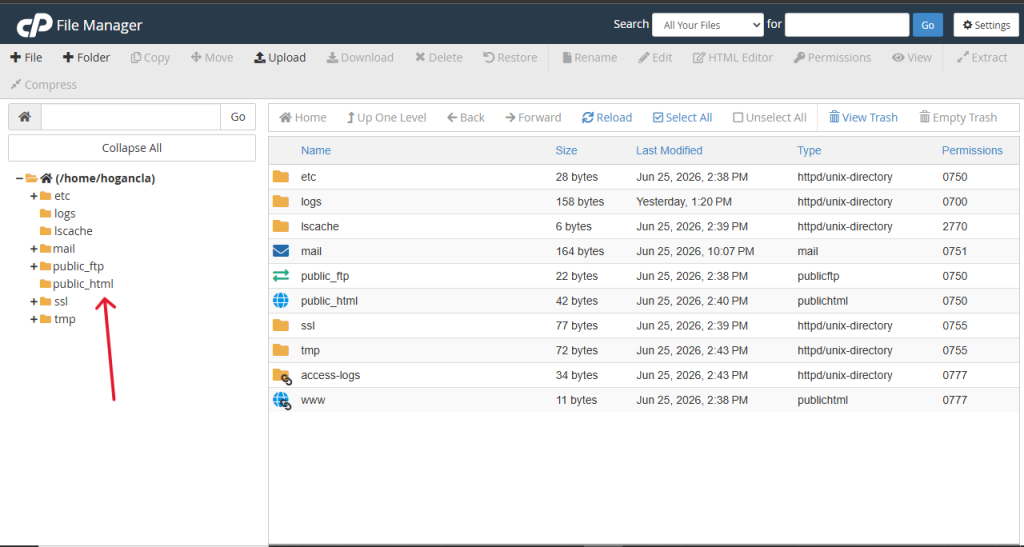
Upload your website files
This is where your website lives.
Step 2: Install WordPress (Optional)
If you don’t have a website yet:
Go to Softaculous Apps Installer
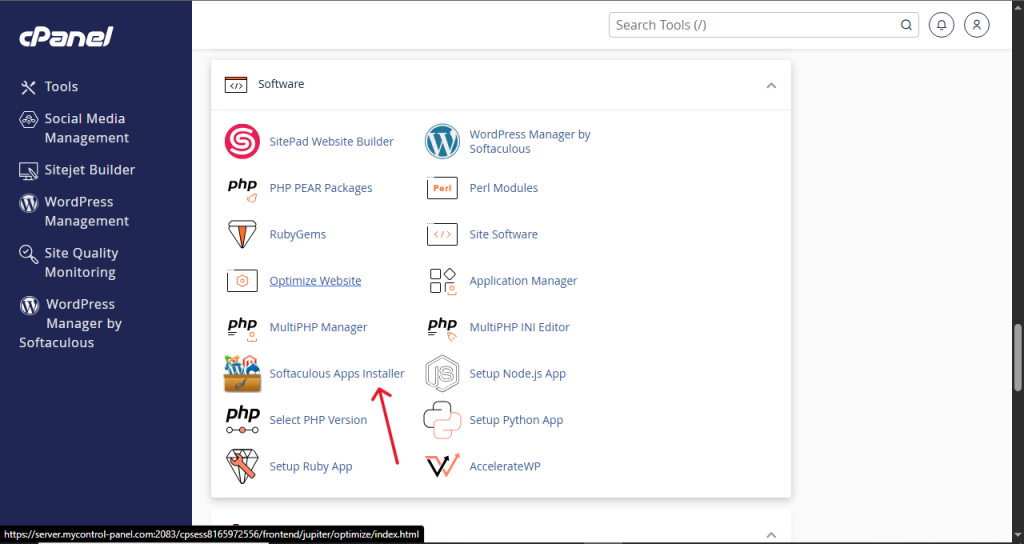
Select WordPress
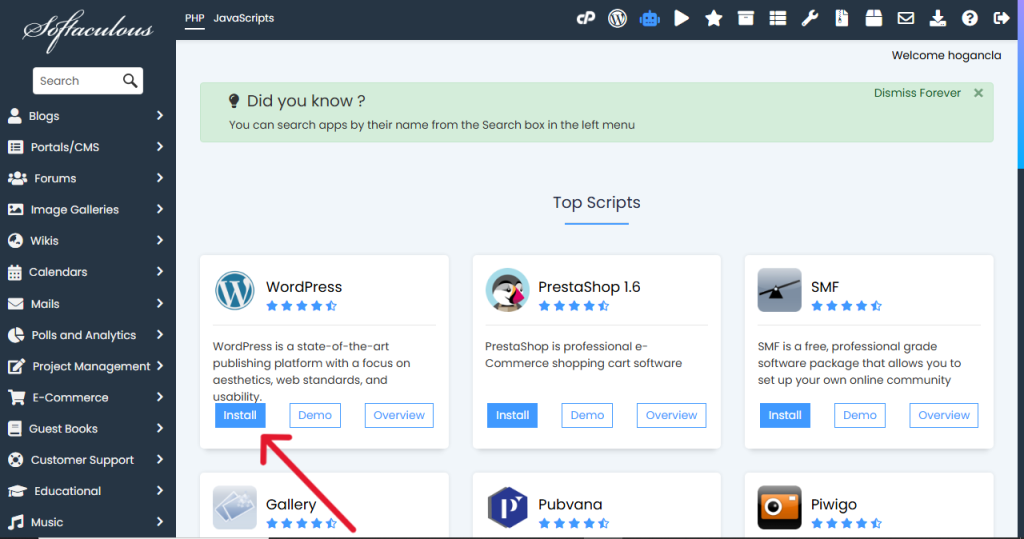
Click Install
Fill in your details and complete setup.
Step 3: Create a Business Email
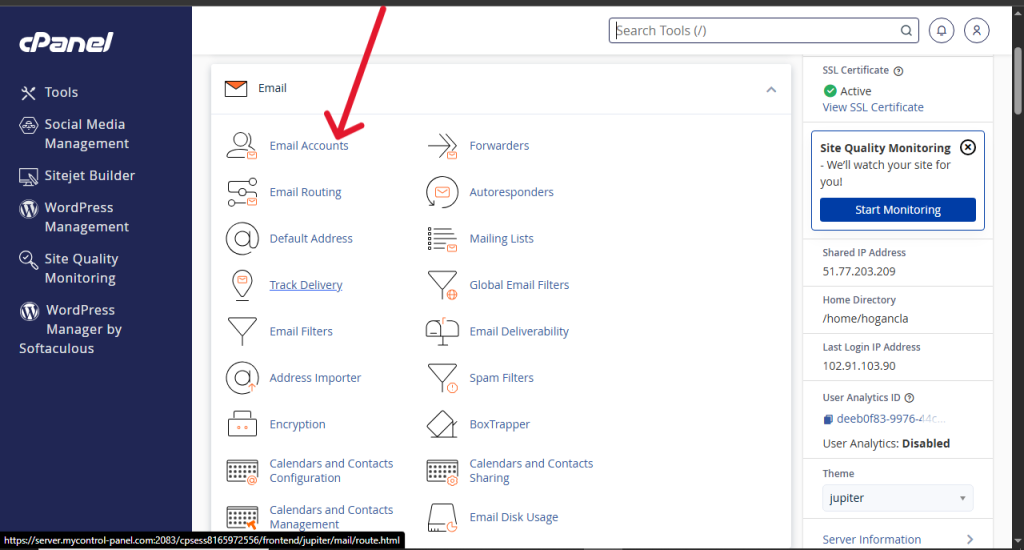
Go to Email Accounts
Click Create
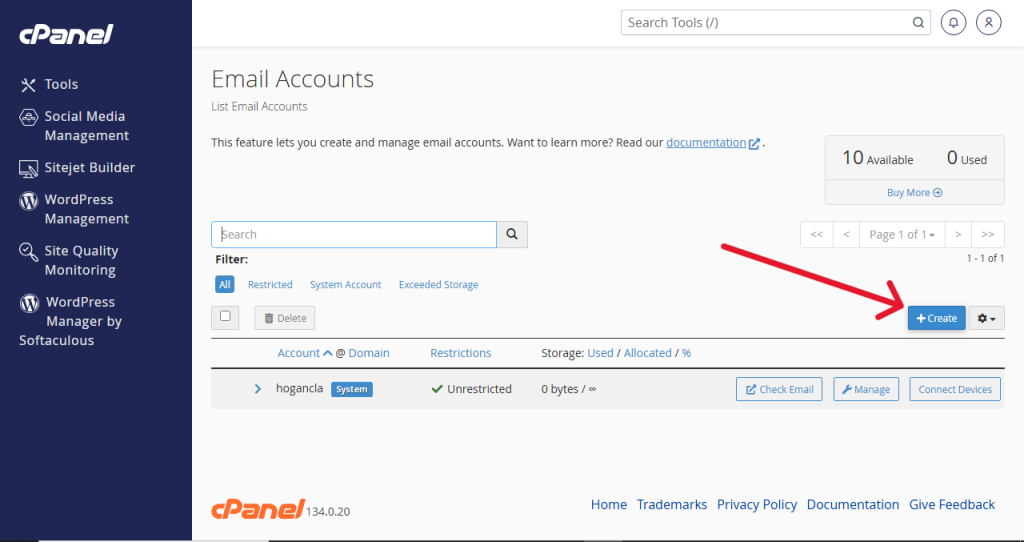
Enter your email name and password
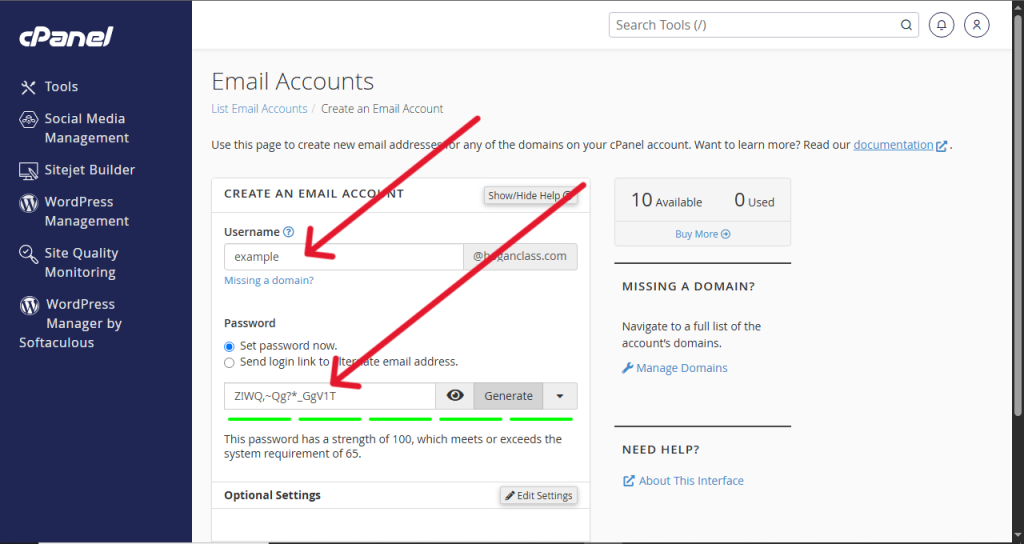
Example:
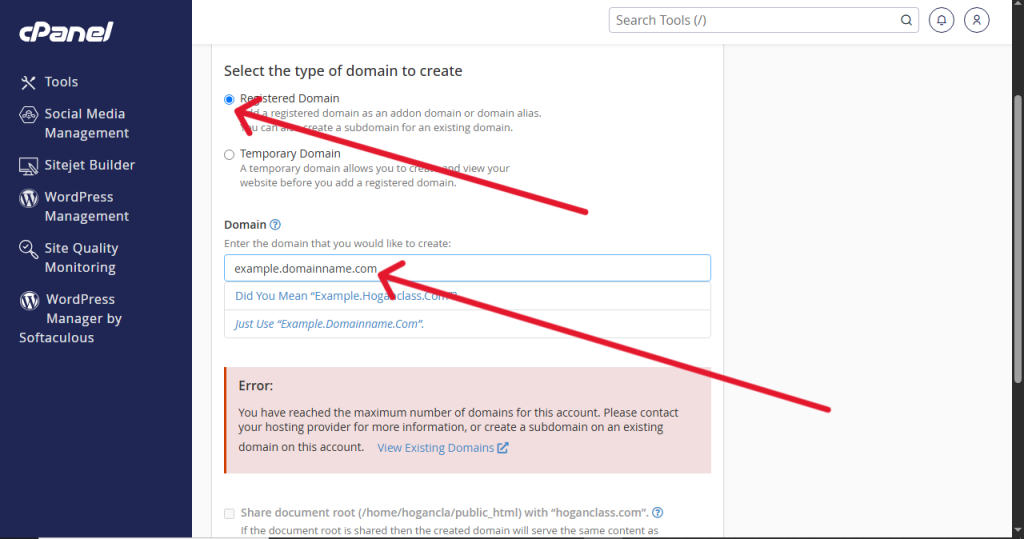
Step 4: Add Your Domain
If you have additional domains:
Go to Domains
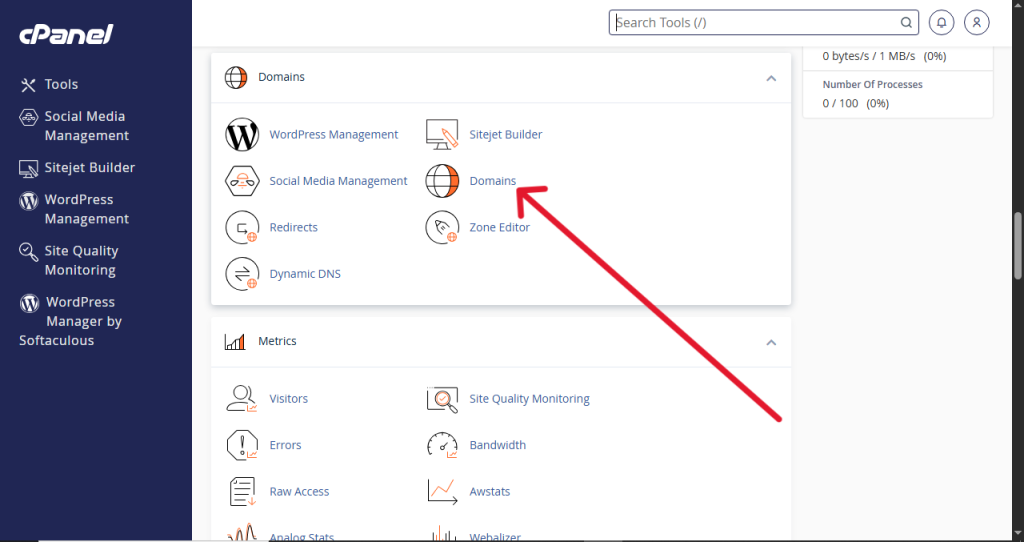
Click Addon Domains
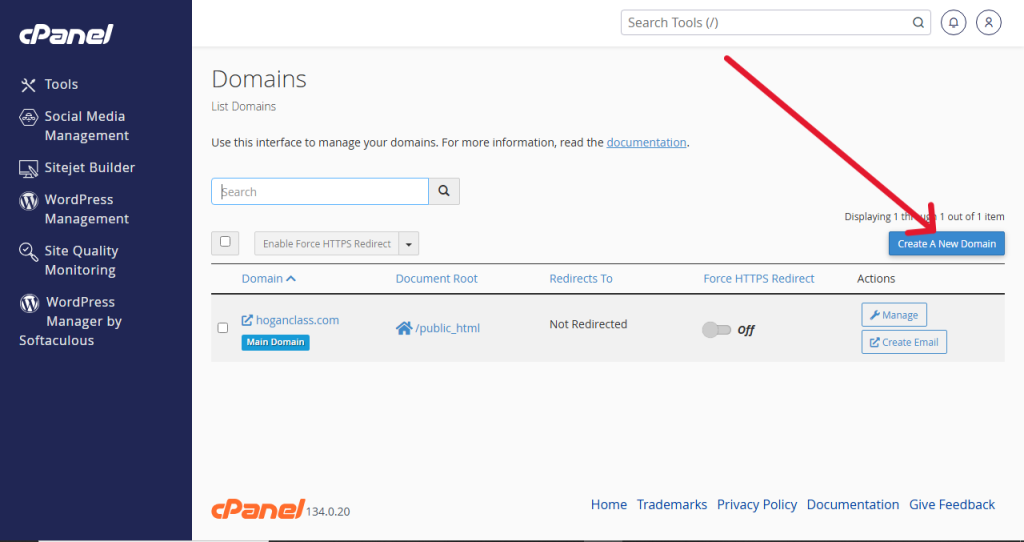
Enter your domain name
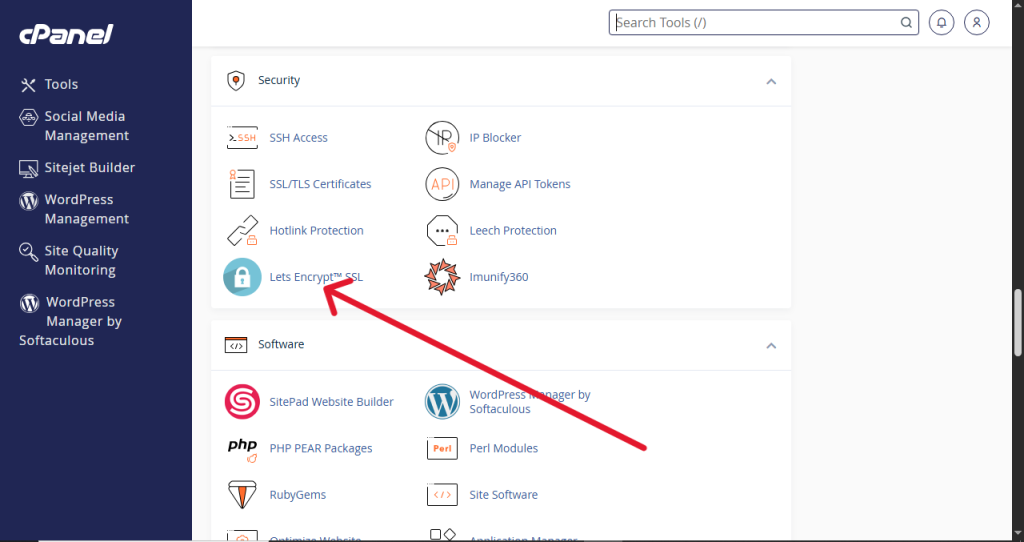
Step 5: Secure Your Website with SSL
Locate Let’s Encrypt™ SSL
Click Issue
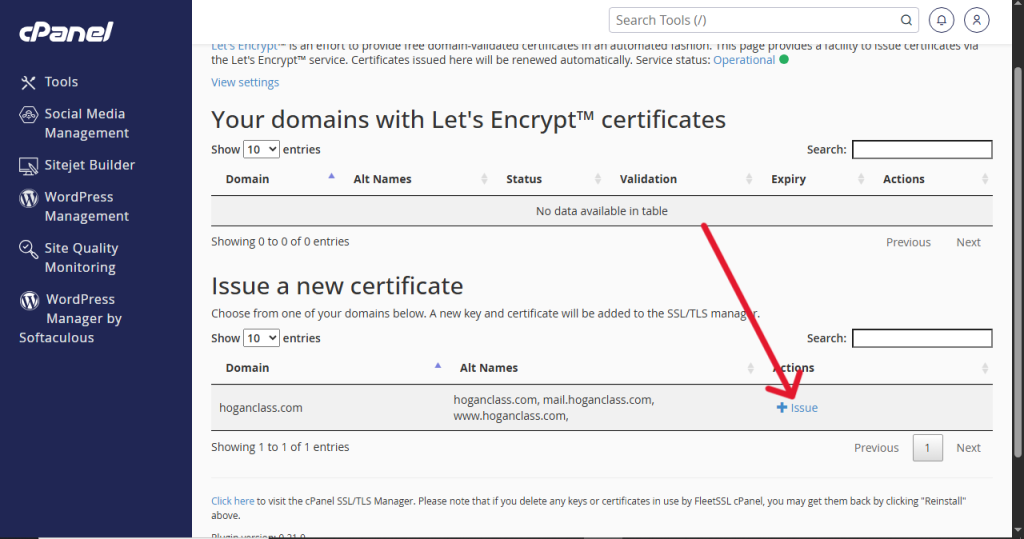
This ensures your site uses HTTPS, improving trust and security.
Useful cPanel Tips for Beginners
To make your experience smoother:
- Always keep backups of your website
- Use strong passwords for security
- Monitor disk space usage
- Keep your software updated
- Avoid deleting important system files
Common Mistakes to Avoid
- Uploading files outside public_html
- Forgetting to secure your website with SSL
- Using weak passwords
- Ignoring backup creation
- Misconfiguring domains
Avoiding these will save you from common issues.
Why Use cPanel on Zuumhost?
Zuumhost provides a smooth cPanel experience with:
- Easy-to-use interface
- Fast performance
- Secure environment
- Full control over your hosting
- Reliable support when needed
It’s designed to help you manage your website without stress.
Final Thoughts
Getting started with cPanel may seem overwhelming at first, but once you understand the basics, it becomes a powerful tool for managing your website.
With Zuumhost, you have everything you need in one place, from file management to email creation and security. Take your time to explore the features, and you’ll quickly gain confidence in managing your hosting environment.